The tech stack, explained
What each part is, why it was chosen, and how the parts work together to create
WordPress sites at http://name.test without opening the Laragon app.
View on GitHub · installation & requirements in the README →
wplm terminal commands.1Overview
One PowerShell program, two ways to use it, and a library of small files that each do one job.
 You
  |
  +-- Window (WinForms)  --+
  |                        +-->  wplm.ps1  (PowerShell 5.1)
  +-- Terminal: wplm ... --+        |
                                    +-- lib\Servers.ps1   --> httpd.exe, mysqld.exe, mysqladmin.exe
                                    +-- lib\Hosts.ps1     --> Windows hosts file (+ UAC)
                                    +-- lib\Vhost.ps1     --> Apache .conf files
                                    +-- lib\WordPress.ps1 --> wordpress.org zip, WP-CLI, mysql.exe
                                    +-- lib\Site.ps1      --> "new": runs all of the above in order
                                    +-- lib\Manage.ps1    --> list / open / delete
                                    +-- lib\Setup.ps1     --> PATH, shortcuts, icon, autostart
There's no database of our own, no web server of our own and nothing to install. Everything used is either built into Windows or already part of Laragon. WP Local Manager is the "conductor" that tells those existing pieces what to do, which is what the Laragon app does too.
2The language: Windows PowerShell 5.1
The scripting language built into every copy of Windows 10.
PowerShell can do everything a .bat file does, but it also has real variables,
functions, error handling and objects. It also has direct access to .NET,
Microsoft's large library for Windows programs (files, processes, networking, windows, zip files and more).
Key ideas you will see in the code
| Idea | What it means | Where |
|---|---|---|
Dot-sourcing. "$PSScriptRoot\lib\Servers.ps1" |
Loads another file's functions into the current script, like <script src> in HTML. |
Top of wplm.ps1 |
| Verb-Noun names | Start-Apache, Remove-Vhost, Get-Sites. PowerShell's naming style says what a function does. |
Every lib file |
| Objects, not text | Functions return [pscustomobject]@{ Name = ...; Url = ... }, very much like a JavaScript object. |
Get-WplmConfig, Get-Sites |
| Error handling | throw "message" stops the work, and one try / catch in wplm.ps1 prints it in red. |
wplm.ps1 |
| Calling .NET directly | [IO.File]::WriteAllText(...), [System.Diagnostics.Process]::Start(...) |
Hosts.ps1, Servers.ps1 |
Gotcha: the execution policy
By default, Windows PowerShell refuses to run .ps1 script files. That's why
bin\wplm.cmd exists. It's a one-line batch file that starts PowerShell with
-ExecutionPolicy Bypass just for our script. It's also why only the bin\
folder is on your PATH: if the folder holding wplm.ps1 were on PATH, PowerShell might
pick the .ps1 and refuse to run it.
3The servers: Laragon's programs, without Laragon
Laragon is mostly a launcher. The real work is done by three separate programs.
Apache httpd.exe
The web server. Listens on port 80, receives the browser's request and returns pages. Runs PHP for .php files.
PHP 8.3 php.exe
The language WordPress is written in. Loaded inside Apache as a module (mod_php.conf). We also run php.exe on its own to run WP-CLI.
MySQL 8.4 mysqld.exe
The database server on port 3306. All databases live in C:\laragon\data\mysql-8.4.
Start, check, stop
- Start: run the
.exewith the right options, hidden in the background (Start-Process -WindowStyle Hidden). For MySQL,--defaults-file=my.initells it where the data folder is. - Check in two ways:
(1) is the process running? (
Get-Process httpd), and (2) does it actually answer? This is a test connection to the port, ormysqladmin pingfor MySQL. - Stop: MySQL gets a polite
mysqladmin shutdown, because a force-kill can damage tables. Apache is simply ended; it holds no data that can be damaged. - Never start twice: every start checks first, because a second copy fails with confusing errors.
4How myshop.test reaches the right folder
Two separate mechanisms work together. Neither needs Laragon running.
Browser: "http://myshop.test"
   |
   v  (1) hosts file:  127.0.0.1  myshop.test   ->  "that's this computer"
Apache on port 80
   |
   v  (2) vhost file:  ServerName myshop.test  ->  DocumentRoot C:/laragon/www/myshop
WordPress in C:\laragon\www\myshop
(1) The hosts file
C:\Windows\System32\drivers\etc\hosts. Windows checks it before asking the internet
where a name lives. 127.0.0.1 always means "this computer". Only Administrators can edit it,
which is why you get one UAC prompt (the Windows "Yes/No" box). The code reruns itself as admin
for just that step, then reports back through a small temporary file. A backup is taken before every change.
(2) The Apache virtual host
C:\laragon\etc\apache2\sites-enabled\auto.myshop.test.conf. One Apache serves many sites by
checking which name the browser asked for. We always run httpd -t (Apache's config check) before restarting,
because one bad file would take down every site. A new file that fails the check is deleted straight away.
5WordPress: zip download, WP-CLI and MySQL tools
Three tools together replace Laragon's "Quick app" and the browser installer.
| Tool | What it does here |
|---|---|
| WordPress zip from wordpress.org |
Downloaded, checked against its SHA-1 fingerprint (so a corrupted or tampered file is rejected),
cached in tools\cache\ for the next site, then unpacked with .NET's built-in zip support. |
WP-CLIwp-cli.phar |
The official WordPress command-line tool. A .phar is a whole PHP program packed into one file.
It writes wp-config.php and runs wp core install, the same work as clicking through WordPress's setup screens.
Also available directly: wplm wp <site> <command>. |
| mysql.exe / mysqldump.exe | MySQL's own command-line tools. They create and drop databases, and export the .sql backups made before a delete. |
What happens during wplm new myshop
- Check the name, folder, database and Apache config. Nothing is changed if a check fails.
- Hosts line first, so the single UAC prompt comes at the start.
- Install WordPress: unzip, create the database, write
wp-config.php, run the installer. - Apache config: write the vhost and validate it.
- Start the servers if needed (Apache last, so it reads the new config once), then open the browser.
If any step fails, everything that run created is removed again, so you can simply run it again.
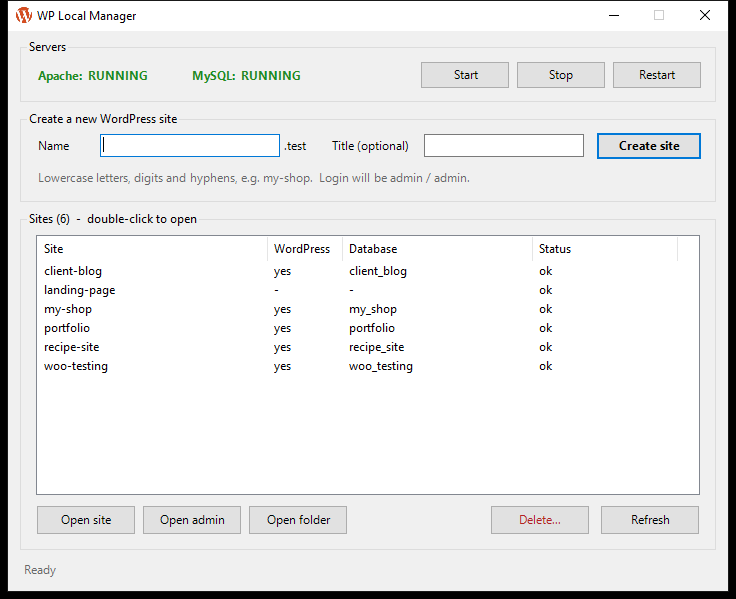
6The window: Windows Forms (WinForms)
.NET's classic way to build Windows desktop windows, usable straight from PowerShell.
If you know the DOM, WinForms will feel familiar:
| Web (what you know) | WinForms (what we used) |
|---|---|
<button>, <input>, <fieldset> | Button, TextBox, GroupBox |
btn.addEventListener('click', fn) | $btn.Add_Click({ ... }) |
setInterval(fn, 2000) | Windows.Forms.Timer with Interval = 2000 |
a <table> | ListView in "Details" view |
The key design choice
The window doesn't do the work itself. Each button runs the normal wplm command
in its own console window. That means:
- The terminal and the window can never behave differently, because they share the same code.
- The UAC prompt and the "type the name to delete" check keep working.
- You can watch exactly what's happening.
Auto-refresh
Every 2 seconds the window builds a cheap "fingerprint" of what's on disk: the folder names in www,
the Apache config file names, and the hosts file's timestamp. It reloads the site list only when that fingerprint changes.
It also reloads as soon as a running command writes its "done" file, without waiting for you to close the console.
7Windows integration
All in lib\Setup.ps1. Per-user, needs no admin, and fully reversible with wplm setup remove.
PATH
The list of folders Windows searches when you type a command. bin\ was added by editing the registry value directly, so your existing %USERPROFILE% entry was kept intact.
Shortcuts
.lnk files on the Desktop and in the Start Menu, created through WScript.Shell, an old but reliable Windows component.
Icon
An .ico file is a container holding one picture at several sizes (16 to 256 px). It is built byte by byte from assets\app-icon.png.
Autostart
An optional shortcut in your Startup folder, which Windows runs at every login. Off by default, because new and open start the servers anyway.
8Engineering practices built in
These matter more than any single technology.
Check before you change
wplm new checks everything first, so a refusal leaves nothing half-made.
Make undo possible
Hosts-file backups, a database export before delete, the Recycle Bin instead of permanent deletion, and automatic cleanup when new fails.
Discover, don't hard-code
Version folders like mysql-8.4.3-winx64 are found automatically, so a Laragon upgrade won't break anything.
Test against reality
Every step was run against the real setup, including breaking things on purpose to prove the safety nets work.
9Project files
| Path | Purpose |
|---|---|
wplm.ps1 | The main program: reads the command and calls the right functions. |
wplm-gui.ps1 | The WP Local Manager window. |
bin\wplm.cmd, bin\wplm | Small launchers for cmd/PowerShell and Git Bash. This folder is on PATH. |
lib\Config.ps1 | Finds Laragon's Apache, MySQL and PHP folders. |
lib\Servers.ps1 | Start, stop and status of Apache and MySQL. |
lib\Hosts.ps1 | Hosts file add/remove, with backup and UAC. |
lib\Vhost.ps1 | Apache vhost files, with the httpd -t safety check. |
lib\WordPress.ps1 | WordPress zip, WP-CLI, database creation. |
lib\Site.ps1 | wplm new: the whole flow, with cleanup on failure. |
lib\Manage.ps1 | list, open, delete. |
lib\Setup.ps1 | PATH, shortcuts, icon, autostart. |
templates\vhost.conf | The Apache config template (Laragon's own format). |
assets\app-icon.png | The app icon. Replace it and run wplm setup to change the icon. |
tools\ | Downloaded at runtime: wp-cli.phar and the cached WordPress zip. |
backups\ | Hosts-file copies, database exports from deleted sites, and the PATH from before setup. |
10Command reference
wplm new <name> [title]    Create a WordPress site at http://<name>.test (login admin / admin)
wplm list                  Show all sites and whether each is fully set up
wplm open <name> [admin]   Open a site (or its dashboard); starts servers if needed
wplm delete <name>         Delete a site: database backed up, folder to Recycle Bin
wplm gui                   Open the WP Local Manager window

wplm status | start | stop | restart     Apache + MySQL

wplm hosts list | add <name> | remove <name>
wplm vhost list | add <name> | remove <name>
wplm wp <name> <wp-cli command...>      e.g. wplm wp myshop plugin list

wplm setup [remove]        PATH + Desktop / Start Menu shortcuts
wplm autostart on | off    Start servers at Windows login
wplm help Everything above11Where to start reading the code
lib\Servers.ps1: the smallest file with real ideas (processes and ports).lib\Hosts.ps1: file editing done carefully, plus the admin-rights trick.lib\Site.ps1: how the pieces are put together, with cleanup on failure.wplm-gui.ps1: once those make sense, see how the window wraps them.